

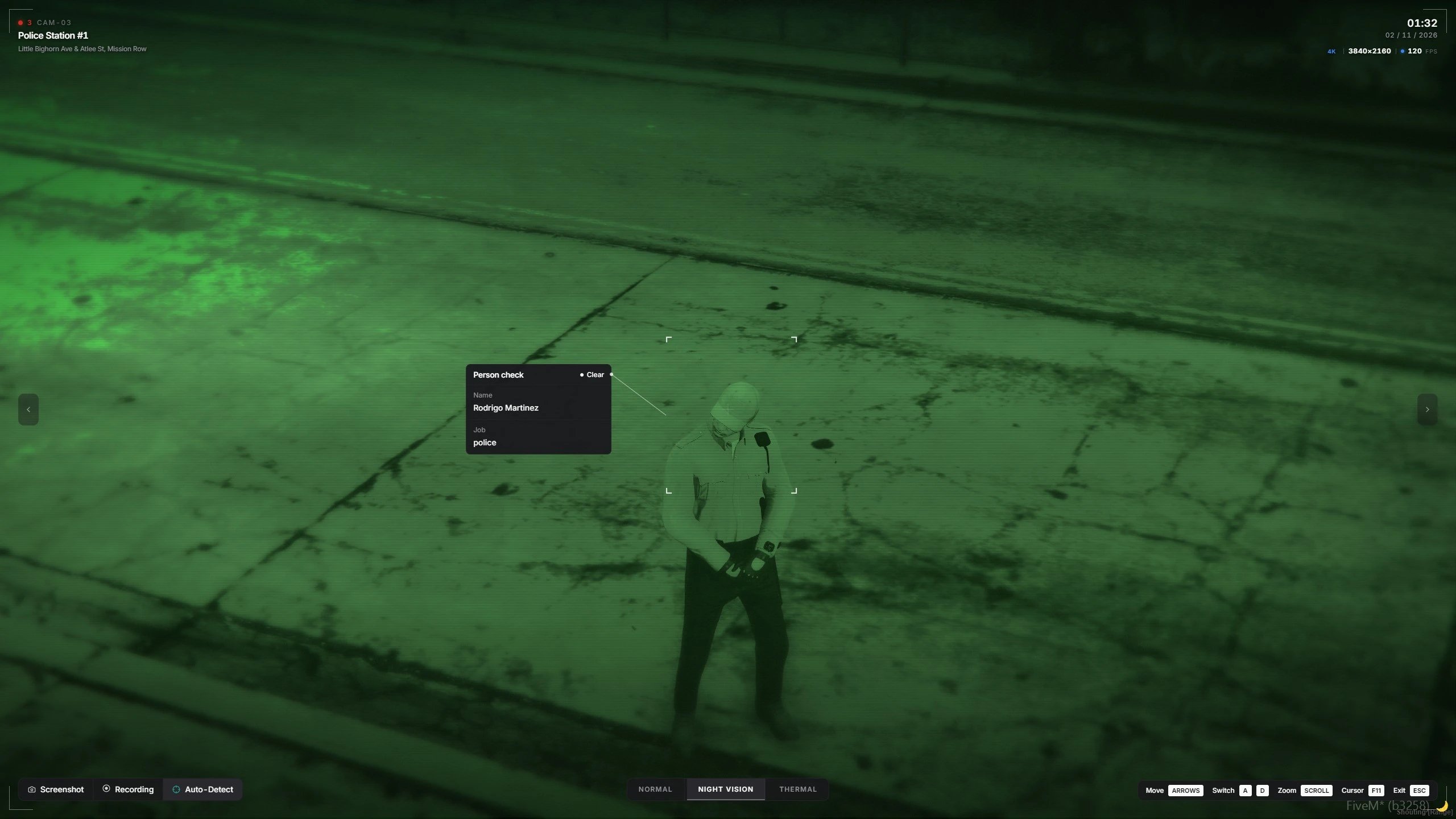
Watching a live camera feed
Before you start
Officers need these permissions:
Previews and recordings are uploaded, so set up media uploads first.
Create a camera
1
Open the form
Open the MDT, go to Cameras, and click Create camera.
2
Name it and pick a model
Give the camera a name officers will recognize, such as
Mission Row lobby. Then pick a model. The model decides what the feed can do: turn, zoom, or use night vision.3
Choose the departments
Under Department access, choose which departments can see the camera, or leave it open to all.
4
Open the camera creator
Click Open camera creator. The MDT closes and takes you in game.
5
Place, adjust, aim, and review
Go through the four steps of the creator below, then press Enter to save.
6
Create the camera
Back in the form, click Create camera. The prop spawns for every player, and officers can connect to it right away.
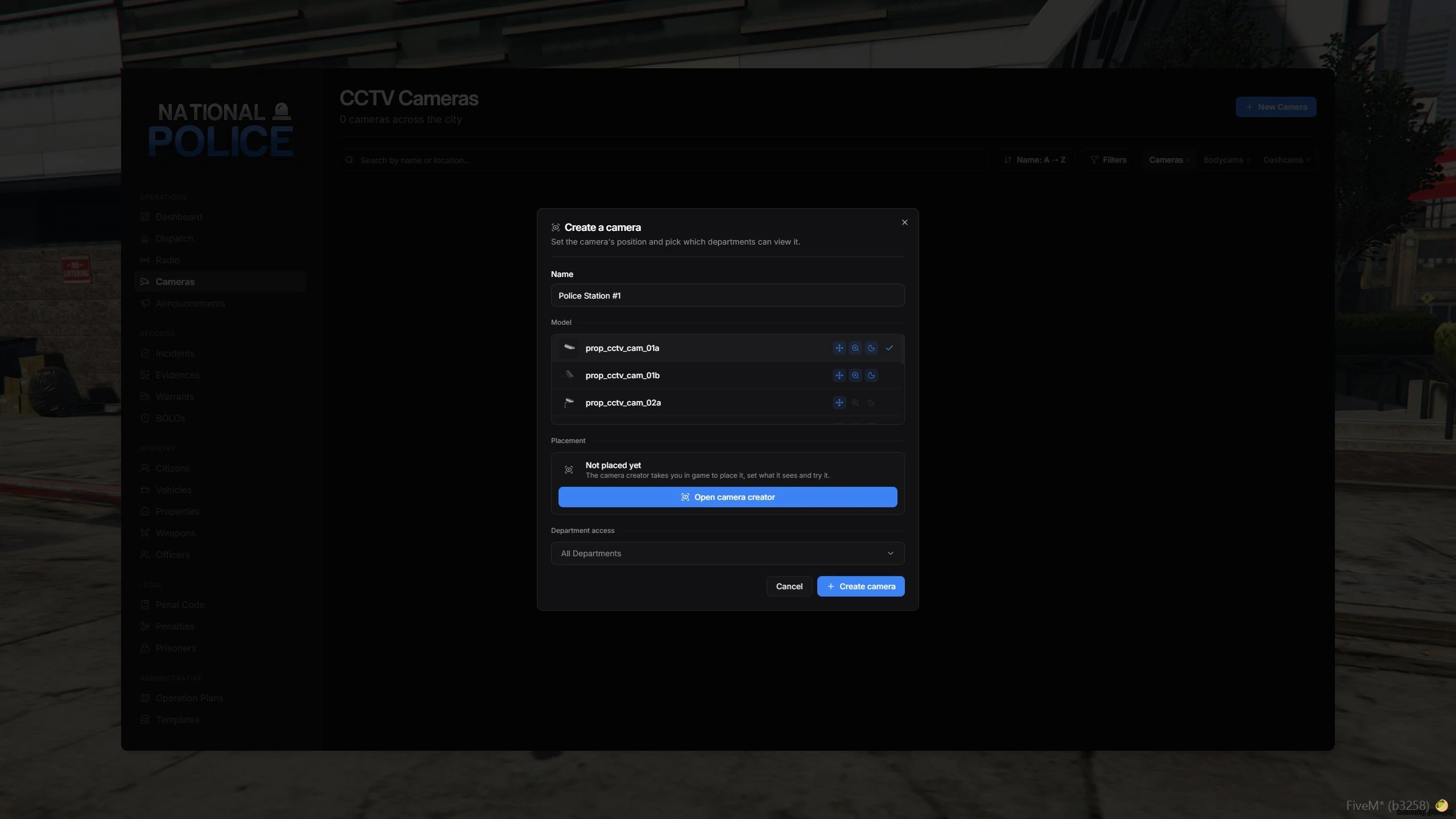
The Create camera form
The camera creator
The creator places the camera in four steps. The keys for the current step are always on screen. Press H for the guided tour. Green checks are fine, amber is worth a look, and red has to be fixed before you can save.1
Place
You fly a free camera while your character stays put. Point the crosshair at a wall, ceiling, or floor. The camera sticks to it, flush and upright.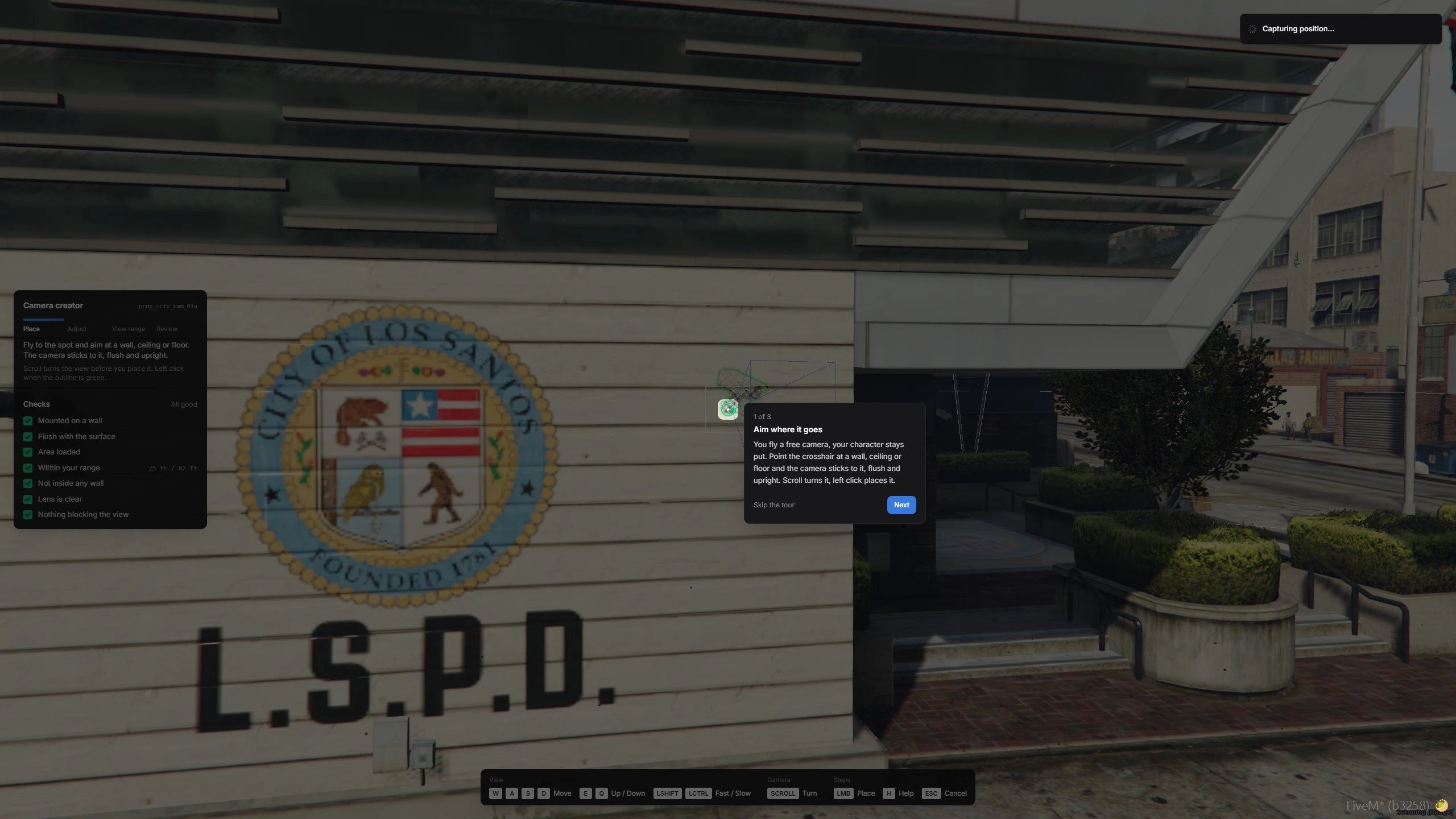
You can only place a camera within your placing range, shown as an outline in game.
2
Adjust
Look at the camera from outside and fine-tune where it sits.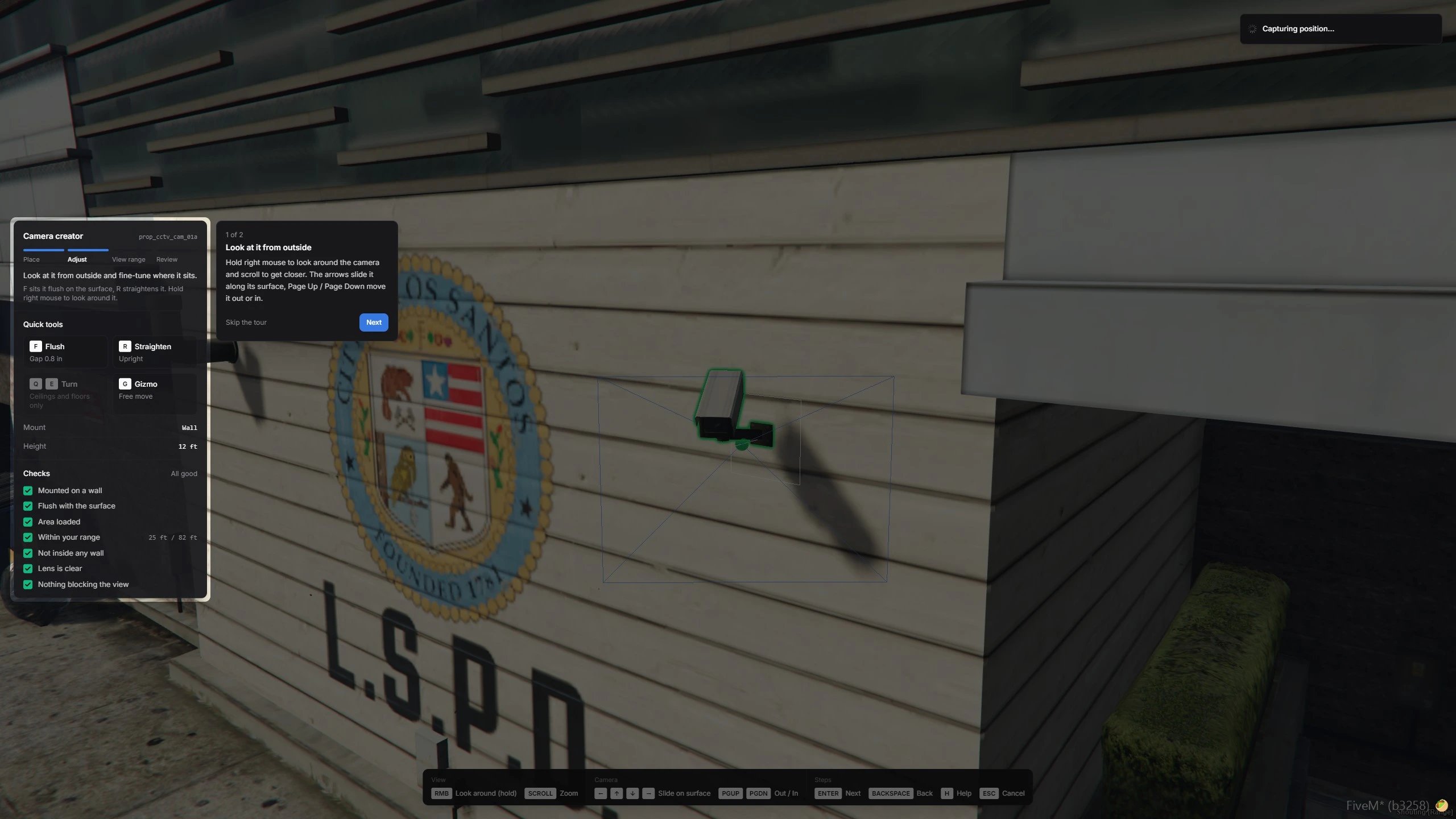
3
View range
You see through the lens exactly like the feed. Set where the camera rests and how far operators can turn and zoom it.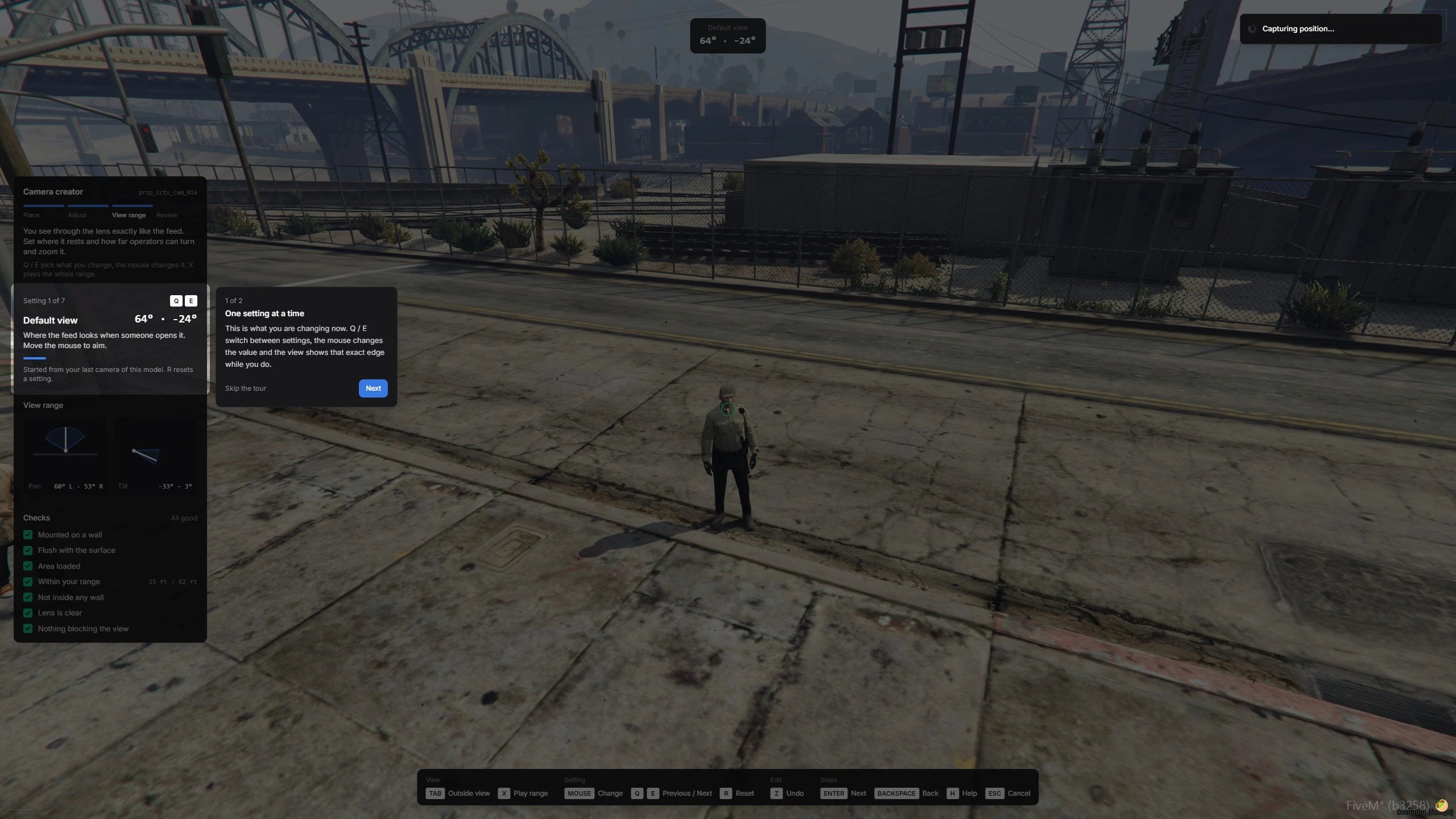
The settings are the default view, pan left and right, tilt up and down, and zoom in and out.
4
Review
Test the feed exactly as operators will. Move the mouse and scroll to try the range.
Manage every camera
Admins can see and edit every placed camera, whatever its departments. Run/mdtadmin and open CCTV manager.
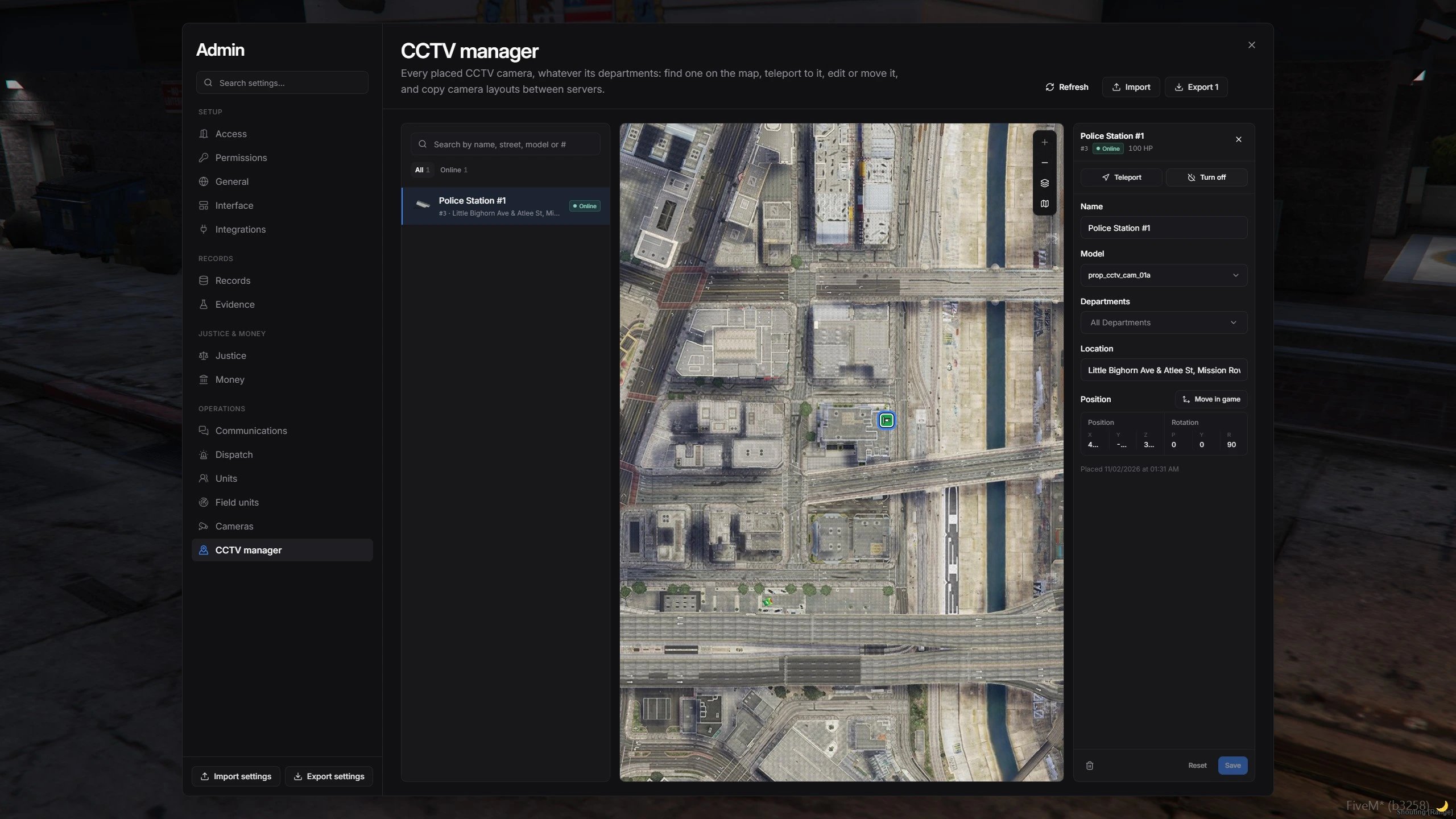
The CCTV manager in the admin panel
- Find: search by name, street, model, or number, and filter by online, offline, destroyed, or missing.
- Teleport to a camera, or Move in game to open it in the creator. Admins can move a camera up to
AdminMaxDistancefrom where it is. - Turn off, Turn on, Repair, or Respawn a camera whose prop was removed.
- Export and Import camera layouts to copy them between servers, such as from a test server to production.
Deleting a camera removes it from the world and the MDT. Its recordings stay in the gallery.
Placing range
config/config.lua
/mdtadmin, under Cameras.
Camera models
Each prop model sets what its feed can do. The built-in models cover every GTA CCTV prop. To use a custom prop, add its model name:config/config.lua
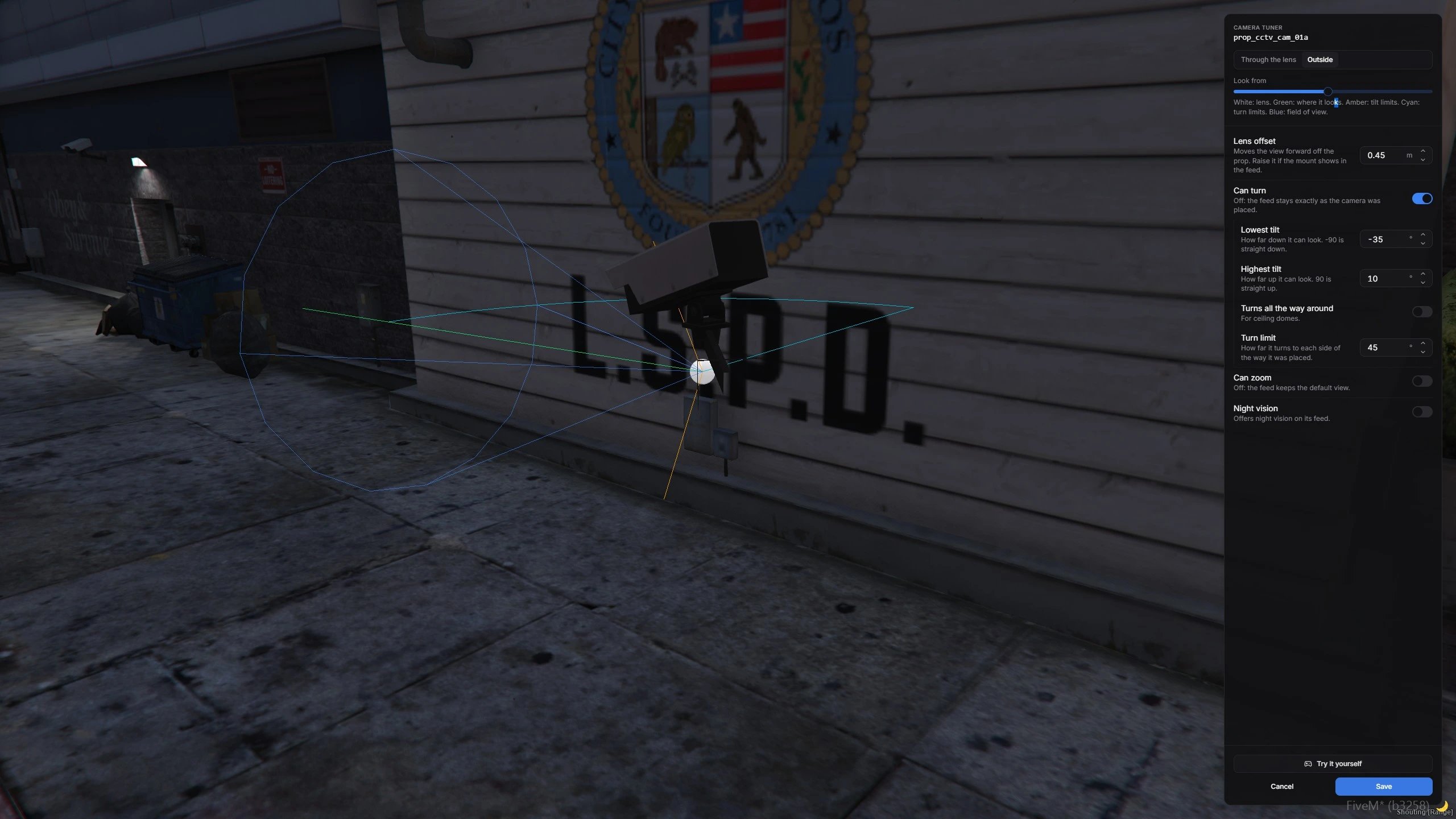
Tuning a camera model in game
Damage, hacking, and repairs
All of these can be changed live in
/mdtadmin, under Cameras. The damage presets go from Fragile (2 hits) to Indestructible.
To repair with the item, add
cctv_repairkit to your inventory like the other items, or set Repair.Method to 'command'.